References
Write [[ and a name, and Genbeya links it to a task, a page or a file in the repository and shows what it points at: a task’s title and current status, a page’s title, a file’s lines. Like smart links in Confluence and Jira, but the reference is plain text in your repository, so it diffs, merges and greps like everything else, and it works offline.
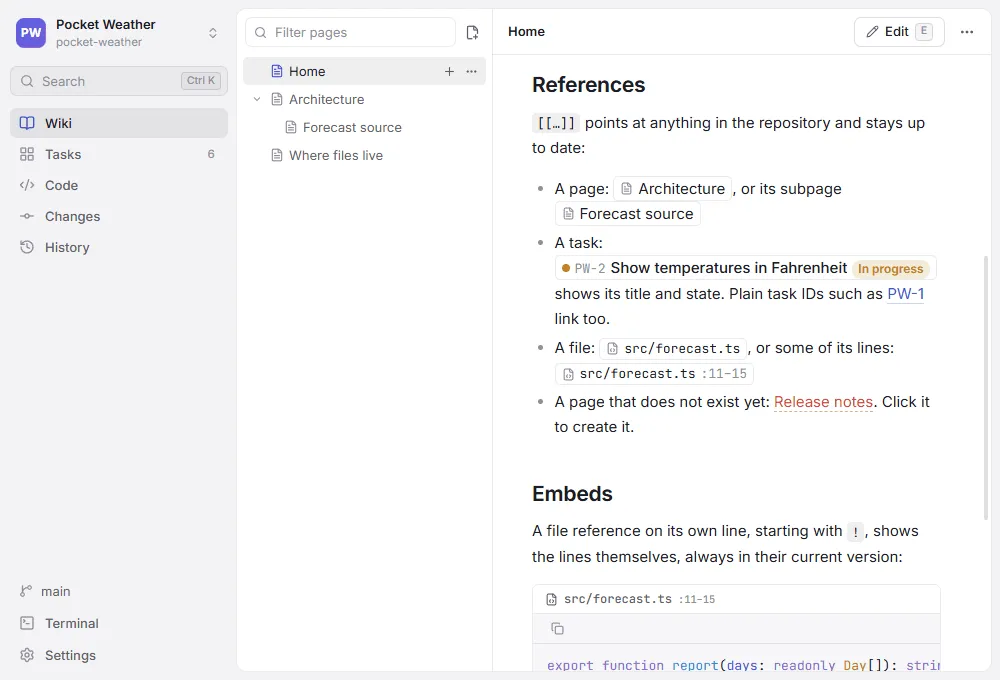
At a glance
Section titled “At a glance”Each row shows what you write and, next to it, how this page renders it. The examples point at this repository’s own tasks, pages and files, so open Genbeya’s repository in Genbeya to see them live.
| You write | Genbeya shows |
|---|---|
A task by ID: [[GENBEYA-9]] | GENBEYA-9Harden SSH hostsIn progress |
A page by title: [[Getting started]] | Getting started |
A page by path: [[Guide/Wiki]] | Wiki |
A section of a page: [[Tasks#comments]] | Tasks › comments |
A file: [[src/client/app/app.ts]] | src/client/app/app.ts |
Lines of a file: [[.genbeya.yml#L6-L11]] | .genbeya.yml:6–11 |
Your own text: [[GENBEYA-14|the rewrite]] | GENBEYA-14the rewrite |
A page that does not exist yet: [[Meeting notes]] | Meeting notes — click to create it |
A file that is not in the repository: [[src/old-name.ts]] | src/old-name.ts |
A task ID in plain text: GENBEYA-17 | GENBEYA-17, with its title and status as a tooltip |
An embed, on its own line: ![[.genbeya.yml#L6-L11]] | The lines themselves, as below |
statuses: - backlog - todo - in-progress - review - doneReferences work wherever Genbeya shows Markdown: wiki pages, task descriptions, task comments, and Markdown files previewed in Code.
[[GENBEYA-9]] shows the task’s ID, title and status. The colour follows the status’s place in the workflow, from the first state to done, so a list of references doubles as a progress report:
- GENBEYA-14Rewrite on a host-agnostic engineDone
- GENBEYA-17Smoke-test on macOS and LinuxReview
- GENBEYA-9Harden SSH hostsIn progress
- GENBEYA-12Virtualize long listsBacklog
The status is live: move a card on the board and every reference to it changes with it. Click a reference to open the task.
A task ID written plainly in text, such as GENBEYA-14, links to the task too. It stays short in the text and shows the title and status as a tooltip. Only IDs of tasks that exist become links; inline code such as GENBEYA-14 stays as written.
Tasks are found by ID, wherever their file is. Moving a task to another epic moves its file, but [[GENBEYA-14]] keeps working. Reference tasks by ID rather than by the path of their file.
A page is found by its title, which comes from its file name: Getting-started.md is Getting started. Titles match regardless of case, dashes and underscores, so [[getting started]] and [[Getting-started]] work too.
A page can also be named by its path: below the wiki folder ([[Guide/Wiki]]) or from the repository root ([[docs/Guide/Wiki.md]]), with or without .md. Use a path when two pages share a title, or to make a subpage’s place clear. # and a heading’s anchor point at a section: [[Tasks#comments]].
A reference to a page that does not exist is red, like Meeting notes. Clicking it asks for the new page’s name, filled in with the title, and creates it, so you can link first and write later.
Files and lines
Section titled “Files and lines”Anything with a folder or an extension is a file: [[src/client/app/app.ts]]. Add the lines after #:
| Write | Means |
|---|---|
#L10 | Line 10 |
#L10-L20 or #L10-20 | Lines 10 to 20 |
The reference shows the path and the lines, such as src/client/app/app.ts:1–5. Clicking it opens the file in Code with the lines selected. A file that is not in the repository shows dashed, like src/old-name.ts, with a tooltip that says so.
Your own text
Section titled “Your own text”Add | and the text to show instead of the title or path: [[GENBEYA-9|the SSH work]] shows GENBEYA-9the SSH work. A task keeps its status colour; a file reference drops the line numbers.
Inside a table, write the | as \|, as in the table at the top, so it does not end the cell.
Embeds
Section titled “Embeds”A file reference alone on its own line, starting with !, shows the lines themselves, highlighted by the file’s language, under a link to the file:
![[src/client/app/app.ts#L1-L5]]import { ChangeDetectionStrategy, Component, effect, inject, untracked } from "@angular/core";import { ContextMenuGuard } from "./core/context-menu-guard";import { NavigationGuard } from "./core/navigation-guard";import { Session } from "./core/session";import { Theme } from "./core/theme";- The lines come from your checkout as it is now, saved but not committed edits included, so documentation never shows stale code.
- Without lines, the embed shows the whole file. An embed shows up to 400 lines; longer ones are cut short with a note.
- A range past the end of the file shows an error that says how many lines the file has.
- Only files embed.
![[GENBEYA-12]]or![[Home]]shows a plain reference.
Writing references
Section titled “Writing references”Type [[ in the editor of a page, a task description or a Markdown file in Code, and Genbeya lists what you can link: tasks by ID and title (with their status), pages by title (by path when titles repeat) and files by path. Type to narrow the list, Enter inserts the reference with its closing ]]. Add #L10-L20 or |text by hand.
The comment box under a task has no list: type the reference in full, such as [[GENBEYA-12]]; it renders once the comment is added.
When things move
Section titled “When things move”- Pages: Move or rename… in a page’s menu offers to update the references that would break: references by path, and references by title when the title changes, in pages, tasks and other Markdown files. The dialog lists every change before you confirm. See Pages and subpages.
- Tasks: references by ID never break, whichever epic the task is in.
- Files: renaming a code file outside the wiki does not rewrite references to it. They turn dashed, so you see what to fix; search for the old path to find them.
Outside Genbeya
Section titled “Outside Genbeya”References are plain text. On GitHub, GitLab or in any editor, [[GENBEYA-12]] reads as written: still clear to a human, and still found by search. Relative Markdown links ([Tasks](Tasks.md)) work in both places; use them for pages that are mostly read on a Git host, and references where the live status and titles matter. This documentation does both: its pages link each other with relative links, so they also work on GitHub, and its examples use references.
Name the task in commit messages and pull requests as well (GENBEYA-12: Virtualize the file tree), so the history leads back to it.